Guide · 3 stepsGuide · 3 stepsGuide · 3 steps
Steps only update when I open the app
Which phone do you use?
We'll show the steps for it. You can switch any time.
Steps for your iPhone Steps for your Android phone Which phone do you use?
Set by your Steps Club app Set by the link you opened Detected your iPhone Detected your Android phone Remembered from your last visit Saved for your next visit Showing iPhone · Showing Android ·
- iPhone
- Android 14+
- Android 9–13
- Samsung
- Pixel
- Xiaomi
- OnePlus, OPPO
- Other Android phones
Quick answer
Background updates are off, so the app only catches up when opened. iPhone: Settings › General › Background App Refresh. Android: Health Connect › App permissions (Samsung: Your health apps) › the app › allow background access.
Your phone and watch keep counting either way. What stops is the app’s chance to pick up new steps while it’s closed, so it shows the latest only when you open it. Below, “the app” is the one that runs behind: Steps Club, or any app that shows your steps.
Turn on background updates
On iPhone it’s Background App Refresh. On Android it’s two things: Health Connect’s background access, which lets an app read your steps while it’s closed, and the app’s battery setting.
- Open Settings and tap General, then Background App Refresh.
- Tap Background App Refresh at the top and choose Wi-Fi & Cellular Data (or Wi-Fi), so it isn't Off.
- Back on the list, turn on the switch for the app. Do the same for your watch's app.
- Open Health Connect and tap App permissions (on Samsung phones, Your health apps), then the app.
- Under Additional access, allow access in the background. Don't see it? Update Health Connect: Android 14 and up, install the latest Google Play system update; Android 13 and older, update it in the Play Store.
- Then open the app's info page: Settings › Apps › the app. Go to Battery (Pixel: App battery usage, and turn on Allow background usage) and choose Unrestricted. Some phones call it No restrictions.
Battery saving holds updates back
Low Power Mode (iPhone)
Low Power Mode turns off Background App Refresh while it’s on. Nothing is lost: your iPhone keeps counting, and your steps catch up when Low Power Mode goes off or you open the app. To turn it off: Settings › Battery › Low Power Mode (iPhone 15 and later: Settings › Battery › Power Mode), or tap the battery icon in Control Center.
Battery limits (Android)
Android can hold an app back to save battery, down to about one background run a day (Android 12 and later). Step 3 above sets it to Unrestricted. Then turn off battery saver if it’s on all the time. Many phone makers add limits of their own, below.
Settings by phone maker
Menus move between versions. If yours doesn’t match, search Settings for “battery” or the app’s name, and pick the least limited option: Unrestricted, No restrictions or Allow background activity.
Samsung Galaxy
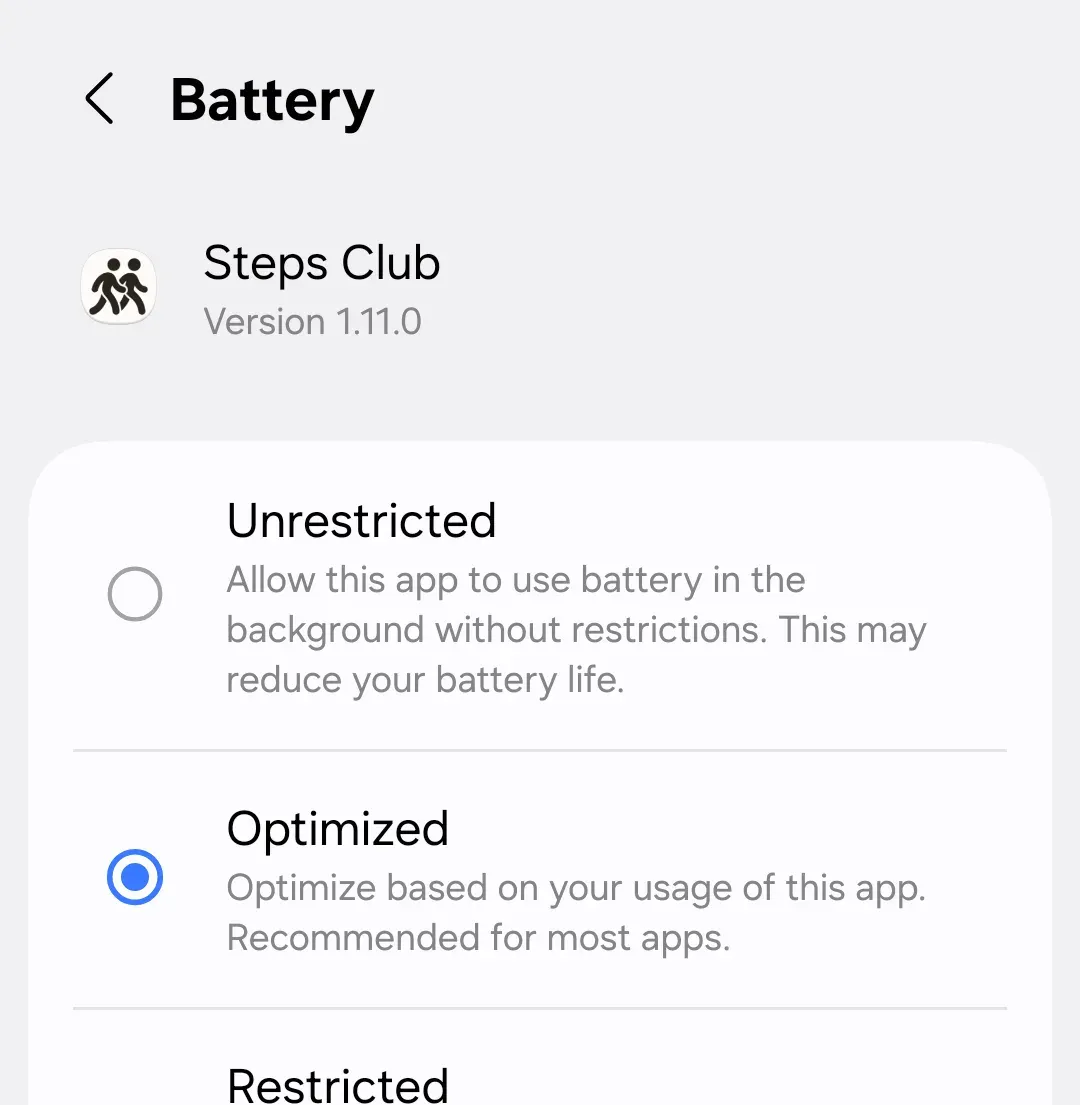
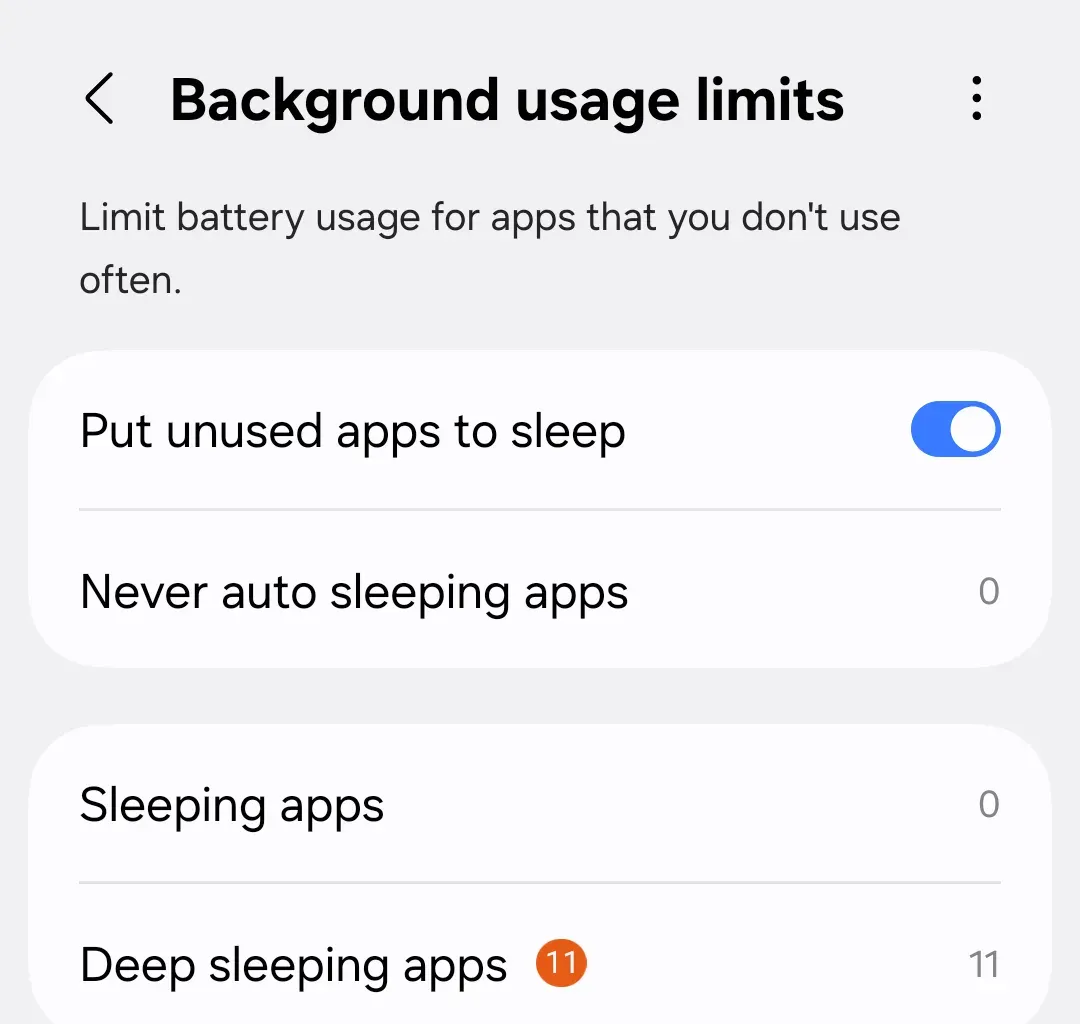
Settings › Apps › the app › Battery › Unrestricted. Then Settings › Battery › Background usage limits (older phones: Battery and device care › Battery › Background usage limits). Make sure the app isn’t under Sleeping apps or Deep sleeping apps, and add it to Never auto sleeping apps.
On Android
Pixel and stock Android
Settings › Apps › See all apps › the app › App battery usage. Turn on Allow background usage, then choose Unrestricted.
Xiaomi, Redmi and POCO
Set the app’s battery saver to No restrictions (HyperOS: Settings › Battery › the app). Turn on autostart: Settings › Apps › Background autostart › the app. Then lock the app in your recent apps, so cleaning them doesn’t close it.
OnePlus, OPPO and realme
Search Settings for App battery management and pick the app. Turn on Allow background activity, and Allow auto launch if you see it.
Motorola
Settings › Apps › Show all apps › the app › App battery usage › Unrestricted. Then restart your phone.
vivo
Settings › Battery › High background power usage, and allow the app.
Huawei and Honor
Open Phone Manager › App launch, or search Settings for App launch, and find the app. Set it to Manage manually, then turn on Auto-launch, Secondary launch and Run in background. Honor phones may show only Auto-launch and Run in background.
Your watch’s app needs the same
Your steps pass through your watch’s app before any other app sees them. If Samsung Health, Google Health, Garmin Connect or Oura is held back, it sends late too, and every app that reads your steps runs behind. Give it the same settings: background refresh on iPhone, Unrestricted battery on Android.
Why this happens
Phones ration background work to save battery. An app that’s closed doesn’t run whenever it likes: the phone wakes it now and then, and decides how often. An app you swipe away from your recent apps may not be woken at all until you open it again, on iPhone and on some Android phones. On iPhone, Background App Refresh is the switch for those wake-ups, and Low Power Mode turns it off. On Android, an app also needs Health Connect’s permission to read your steps while closed, and the battery setting decides how often it gets the chance.
So with these off, an app can only catch up when you open it. Your phone’s count is fine the whole time, and opening the app brings everything in at once.