Guide · 3 stepsGuide · 3 stepsGuide · 3 steps
Connect Oura to Apple Health or Health Connect
Which phone do you use?
We'll show the steps for it. You can switch any time.
Steps for your iPhone Steps for your Android phone Which phone do you use?
Set by your Steps Club app Set by the link you opened Detected your iPhone Detected your Android phone Remembered from your last visit Saved for your next visit Showing iPhone · Showing Android ·
- iPhone
- Android 14+
- Android 9–13
- Oura Ring
Quick answer
Turn on sharing in Oura's settings and allow Steps, then open Oura so your ring syncs. Gen3 and later rings need an active Oura membership for this.
Oura › menu (top left) › Settings › Data sharing › Apple Health or Health Connect
On iPhone
On Android
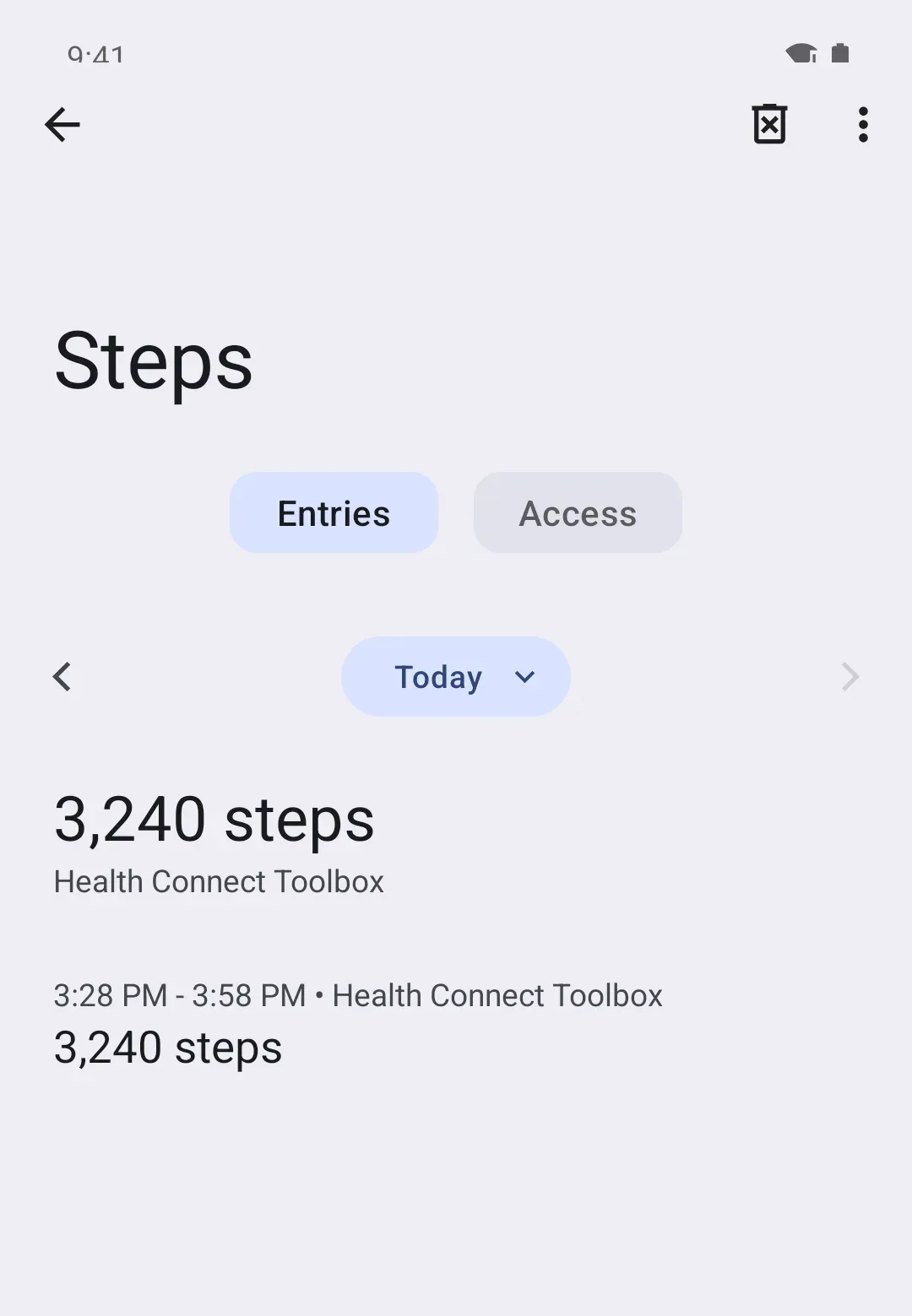
Set it up
Sharing works with every Oura Ring 2. With Gen3 and later rings, it needs an active Oura membership.
- In Oura, open the menu at the top left, then Settings.
- Under Data sharing, tap Apple Health.
- Turn on Connect to Health and allow Steps.
- In Oura, open the menu at the top left, then Settings.
- Under Data sharing, tap Health Connect. No Health Connect yet? Oura offers to download it.
- Allow Steps.
On iPhone
Oura
Allow “Oura” to write
- Steps 3
- Active Energy
- Heart Rate
- Sleep
- Workouts
On Android
Oura
Allowed to write
- Steps 3
- Distance
- Exercise
- Heart rate
- Sleep
Then open Oura’s home screen once so your ring syncs and Oura sends today’s steps.
On iPhone
To change what Oura shares later, open the Health app, tap your profile picture, then Apps (under Privacy), then Oura.
On Android
Using Google Fit with Oura? That link is gone: Oura now shares with Health Connect only.
When its steps arrive
Oura doesn’t publish a schedule. On iPhone, it says Apple Health updates after you finish an activity or workout. On the phones we see, Oura’s steps arrive when you open Oura, as your ring syncs with the app. So opening Oura is the surest way to bring today up to date.
Put Oura first
Your phone counts steps too, and Apple Health and Health Connect keep only the count from whichever source is higher on your list. Oura itself recommends putting it first.
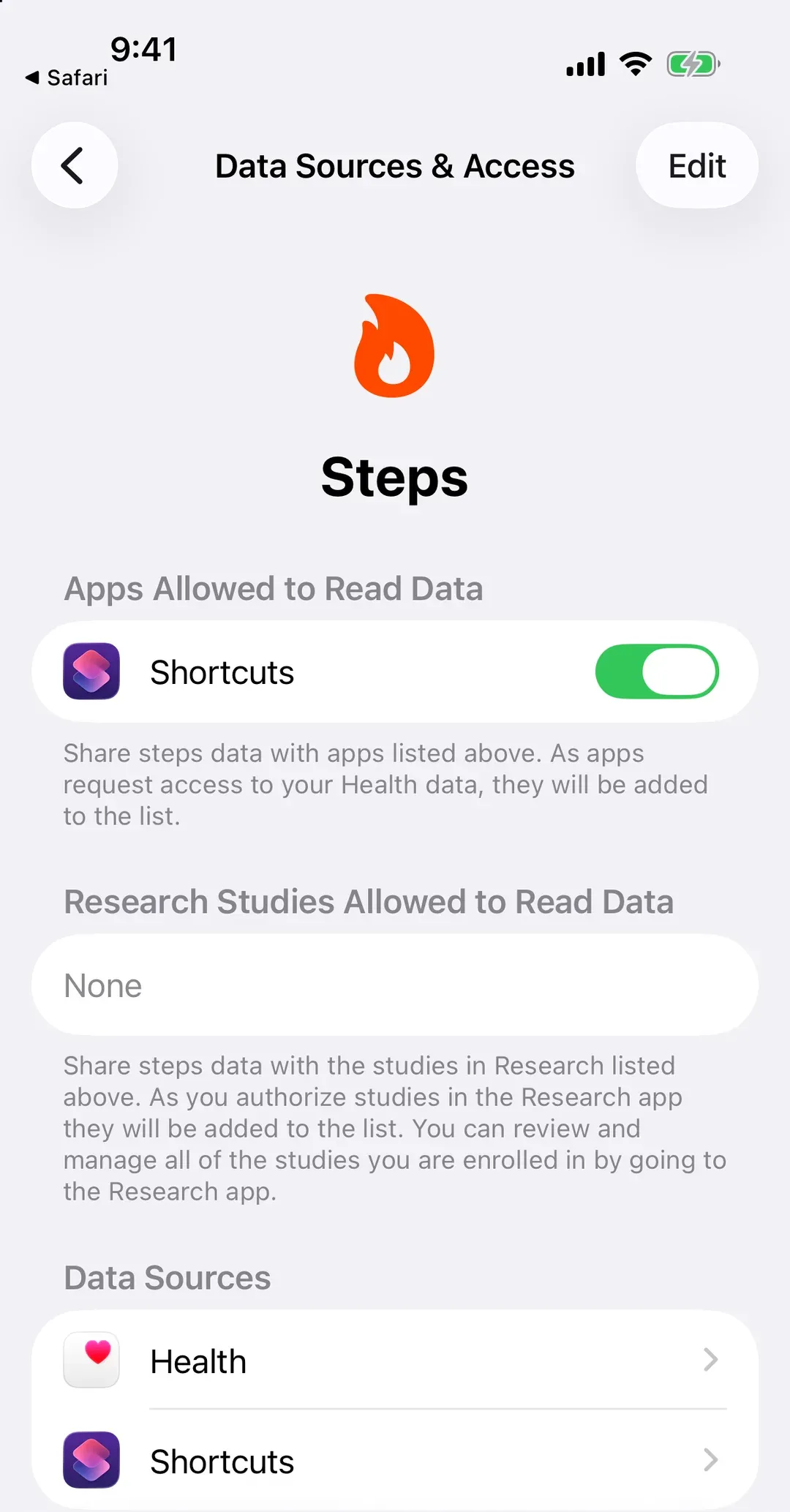
- iPhone: Health › Search › Activity › Steps › Data Sources & Access › Edit, then drag Oura to the top.
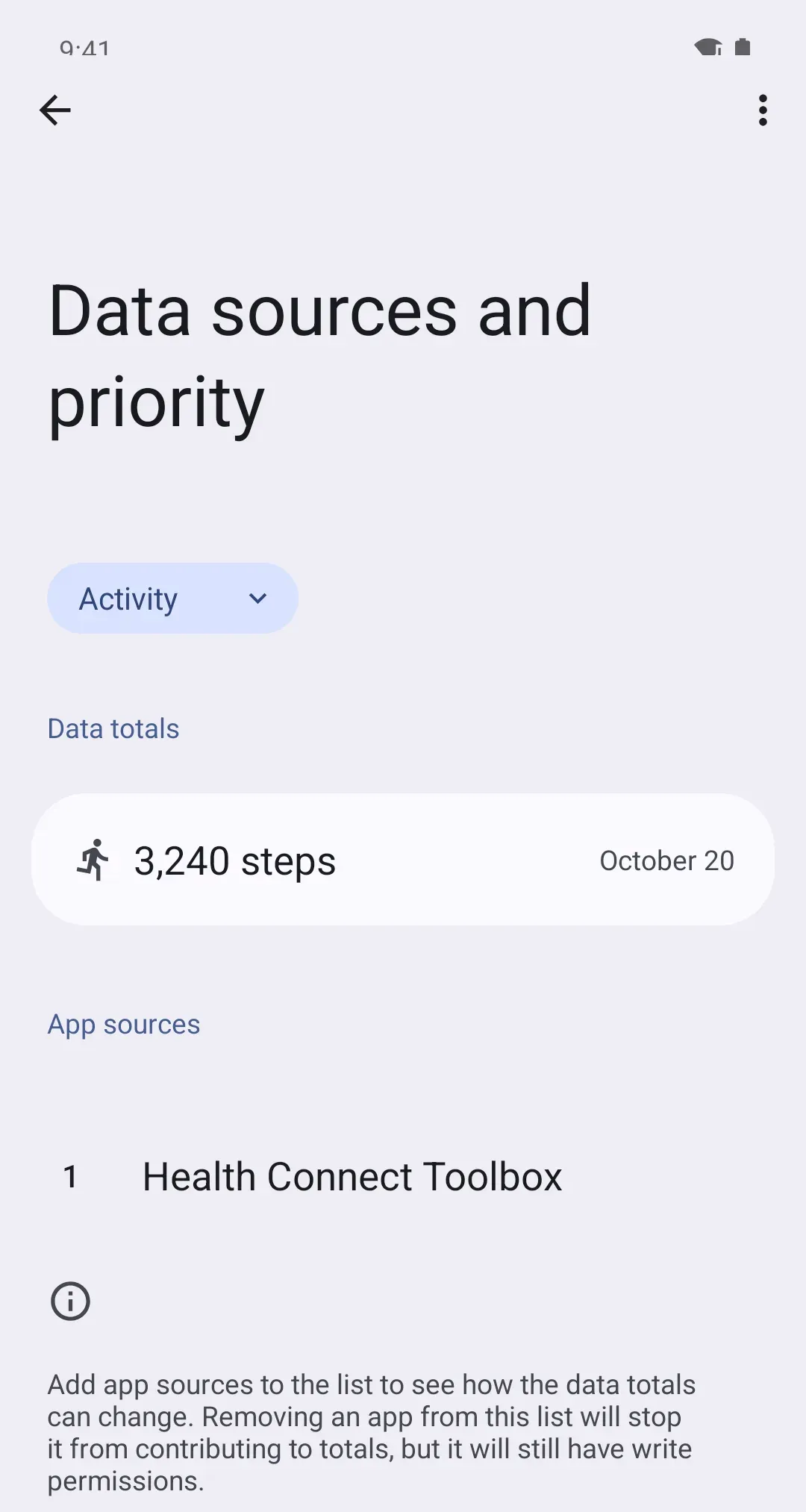
- Android: Health Connect › Manage data › Data sources and priority, choose Activity, then tap the three dots (⋮) next to Oura and Move up until it’s at the top. Android 13 and older: don’t see Manage data? Tap Data and access, then Activity, then App priority.
On iPhone
On Android
Things that trip people up
- Oura counts differently. It reads step patterns from your finger, so it won’t match a wrist or pocket count exactly. A few hundred off is normal.
- Steps stopped? In Oura, under Data sharing, turn the switches off and back on, then restart your phone and open Oura again.
- Membership lapsed. On Gen3 and later rings, sharing stops without an active membership.
Why it works this way
Your ring stores steps until it syncs with the Oura app. Oura then copies them to Apple Health or Health Connect, the shared place on your phone, mostly while it’s open. That’s why opening Oura is the surest way to bring today up to date.