Guide · 3 stepsGuide · 3 stepsGuide · 3 steps
Connect Fitbit or Pixel Watch (Google Health) to Apple Health or Health Connect
Which phone do you use?
We'll show the steps for it. You can switch any time.
Steps for your iPhone Steps for your Android phone Which phone do you use?
Set by your Steps Club app Set by the link you opened Detected your iPhone Detected your Android phone Remembered from your last visit Saved for your next visit Showing iPhone · Showing Android ·
- iPhone
- Android 14+
- Google Health
- Fitbit
- Pixel Watch
Quick answer
Turn on sharing in Google Health, the app that used to be Fitbit. iPhone: Connections › Apps and services › Apple Health. Android: Connections › Partner apps › Health Connect. Allow Steps.
On iPhone
On Android
What changed with Fitbit
From May 19, 2026, the Fitbit app became the Google Health app. Existing Fitbit users got it as an update to the app they had. If you’re looking for “Fitbit” on your phone, look for Google Health.
Some apps used to connect straight to your Fitbit account. Google says that kind of connection stops being supported on October 30, 2026, and you reconnect inside each of those apps. Sharing through Apple Health or Health Connect isn’t affected. It’s also the route that works with every app on your phone, so it’s the one to set up.
Still signing in with a Fitbit account? Google Health needs a Google Account now, so move your Fitbit account to one first.
Set it up
Google Health needs Android 14 or later, or iOS 26 or later, and an adult Google Account. Keep it up to date.
- Open Google Health and tap Connections, then Apps and services.
- Under Add connections, tap Apple Health, then Get started, and agree.
- Turn on Steps (or tap Turn All Categories On), then tap Allow, then Done.
- In Google Health, tap Connections, then Partner apps.
- Set up Health Connect. Tap Sync your favorite health apps, then Set up, then Accept.
- Allow Steps. When it asks about additional access, allow that too, so it keeps sending in the background.
On Android
Google Health
Allowed to write
- Steps 3
- Distance
- Exercise
- Heart rate
- Sleep
Then pull down on the Connections tab in Google Health to sync your tracker. Its steps reach Apple Health or Health Connect after that sync.
On Android
Check it’s sending: in Google Health, tap Connections › Partner apps › Manage Health Connect. “Synced just now” or a recent time means it’s working. The sync icon at the top right sends again. “Review your permissions” or “Update Health Connect”? Set it up again with the steps above.
When its steps arrive
When your tracker syncs with Google Health. Your Fitbit or Pixel Watch counts on its own and keeps the steps until the next sync, then Google Health passes them on. So during the day, Apple Health or Health Connect can run behind what your tracker shows. Opening Google Health and pulling down on the Connections tab syncs it now.
Put Google Health first
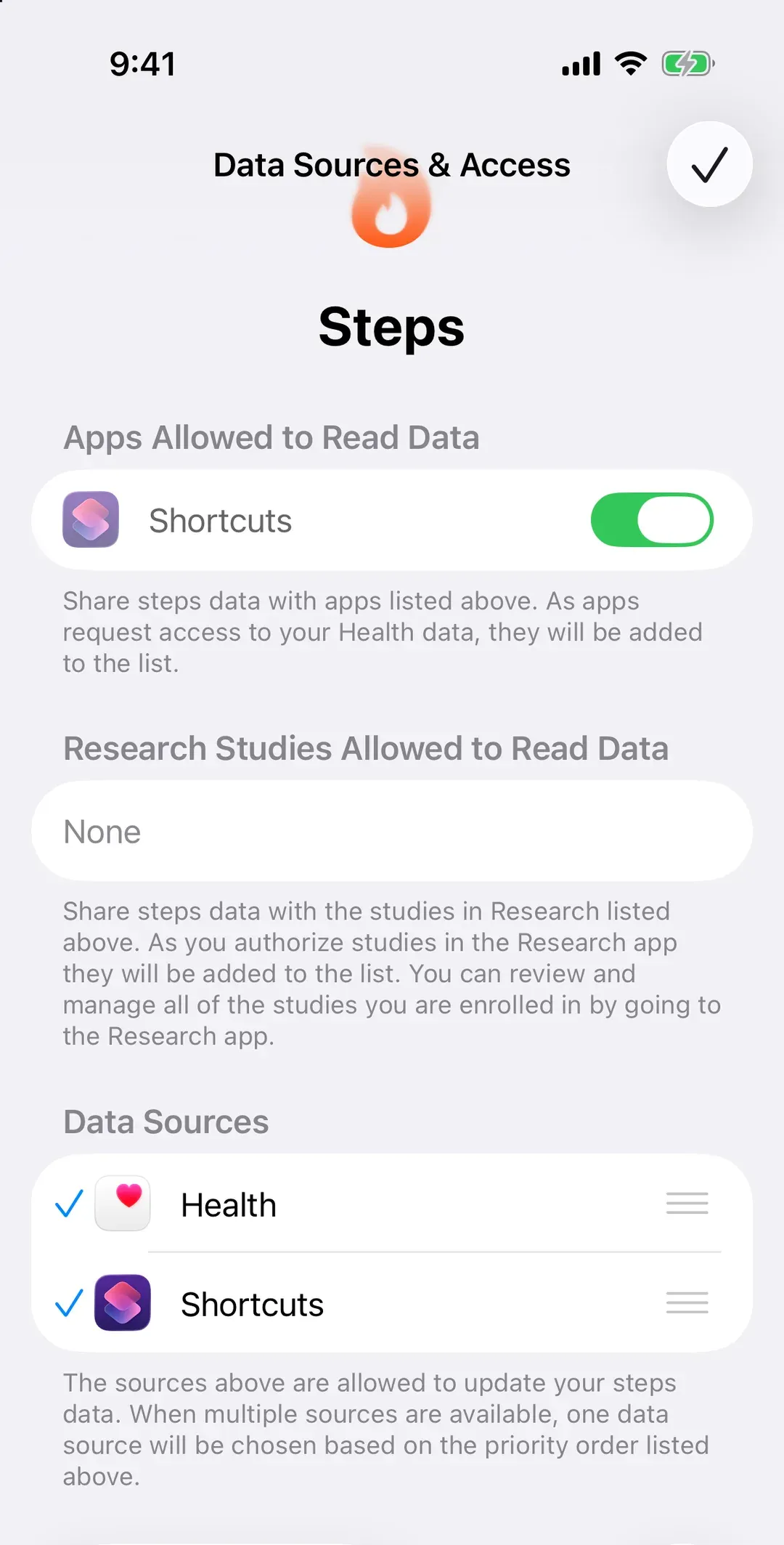
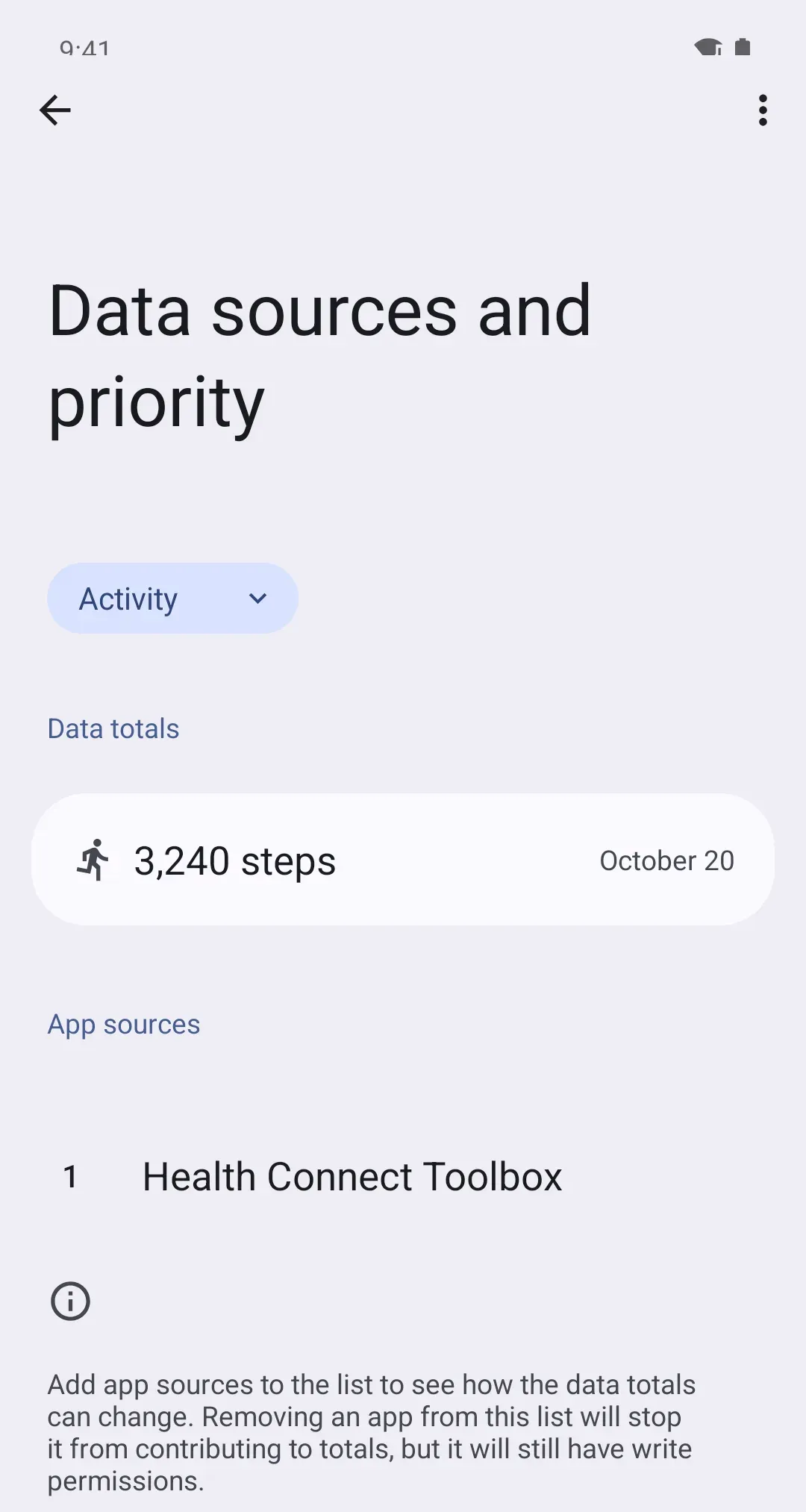
Your phone counts steps too, and Apple Health and Health Connect keep only the count from whichever source is higher on your list. Put Google Health at the top.
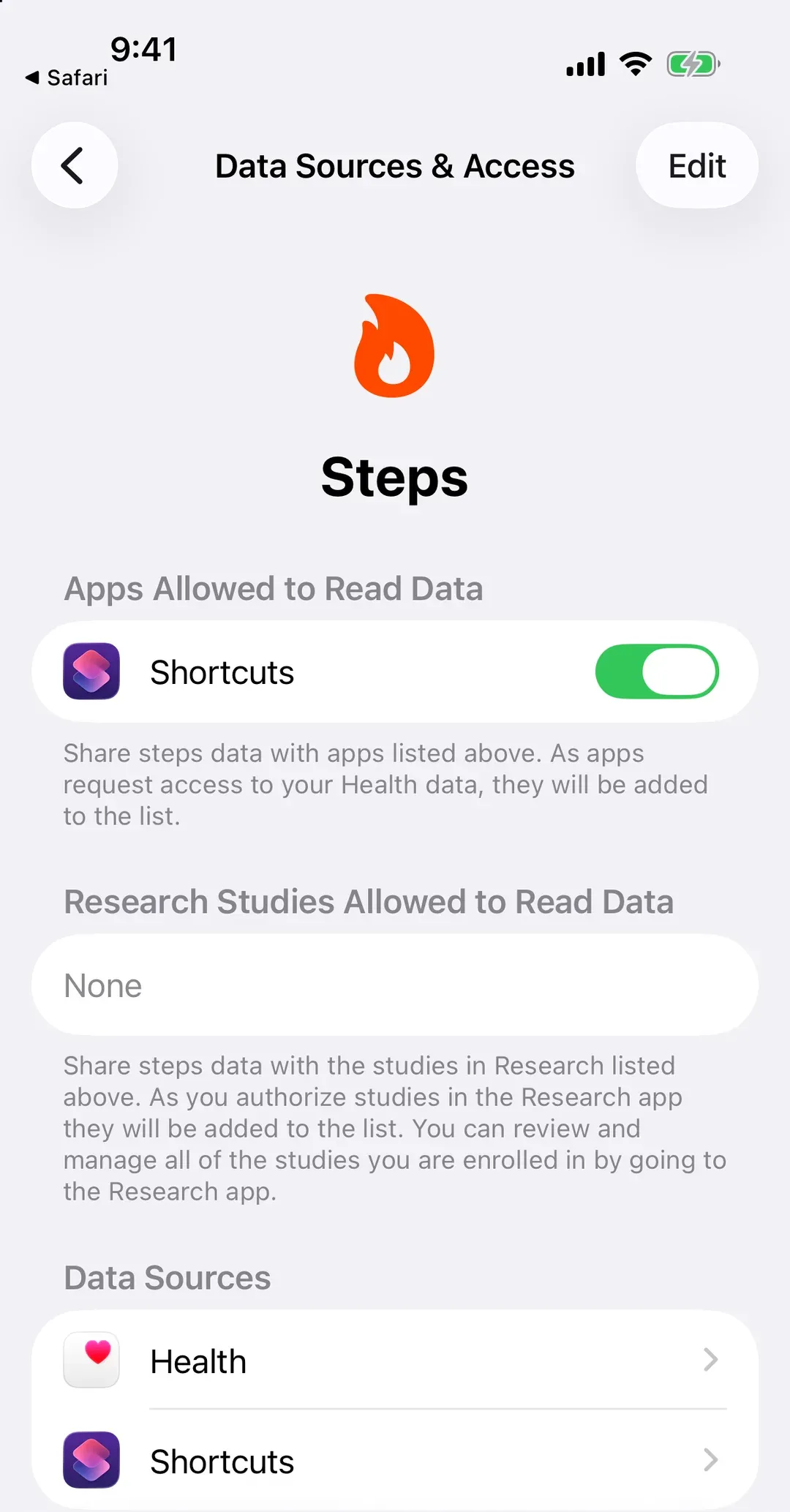
- iPhone: Health › Search › Activity › Steps › Data Sources & Access › Edit, then drag Google Health to the top. A newly connected app usually starts there.
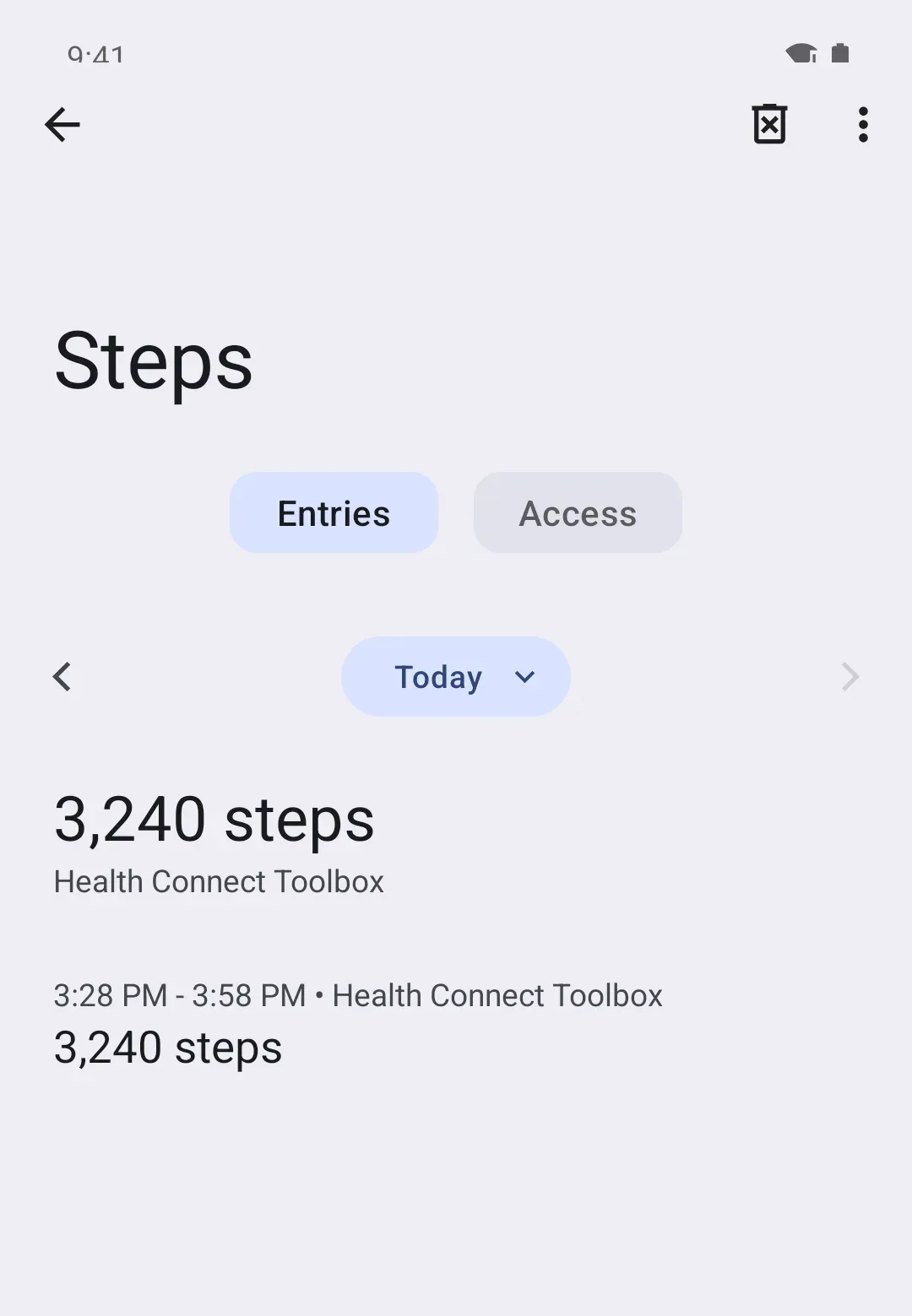
- Android: Health Connect › Manage data › Data sources and priority, choose Activity, then tap the three dots (⋮) next to Google Health and Move up until it’s at the top. Android 13 and older: don’t see Manage data? Tap Data and access, then Activity, then App priority.
On iPhone
On Android
When your tracker won’t sync
If Google Health itself is behind your tracker, nothing can pass on. Google’s fixes, in order:
- Turn Bluetooth off, wait 3 seconds, and turn it back on. Make sure your phone is online.
- Wake the tracker, and turn off Battery saver or Bedtime mode on it. Both pause syncing.
- In Google Health, tap Connections and pull down until the progress bar fills.
- Restart your phone and try again. Then restart the tracker, and sync once its clock face is back.
Pixel Watch? Also check it shows as connected in the Google Pixel Watch app.
Why it works this way
Your tracker saves battery by syncing in bursts, so Google Health gets your steps a little later than you take them. Google Health then shares them with Apple Health or Health Connect, the shared place on your phone, but only the types you allowed. Every other app reads from there.